Play Store screenshots, done to spec
A free design tool for Google Play store artwork. Phone, tablet, Chromebook, Wear OS, TV, Android Auto and XR screenshots, plus the feature graphic, the TV banner and the app icon - every size Play accepts, with the rules checked as you work.
It runs entirely in your browser. Your screenshots are never uploaded, there is no account, and nothing is watermarked.
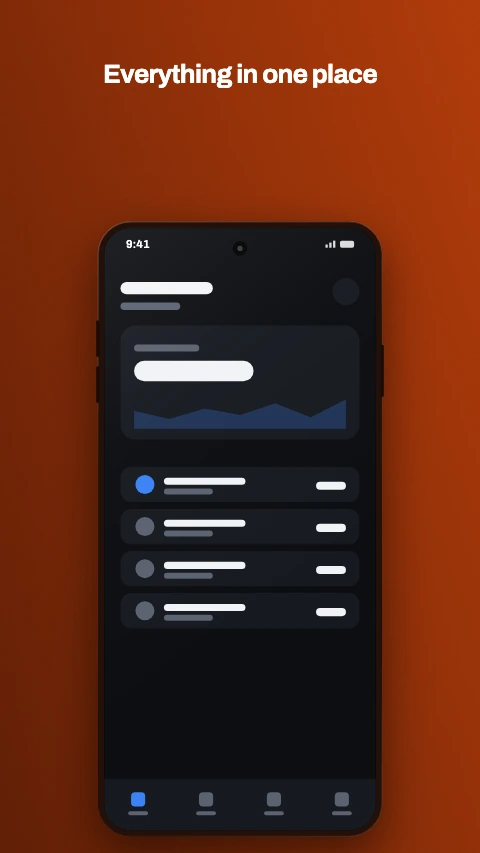
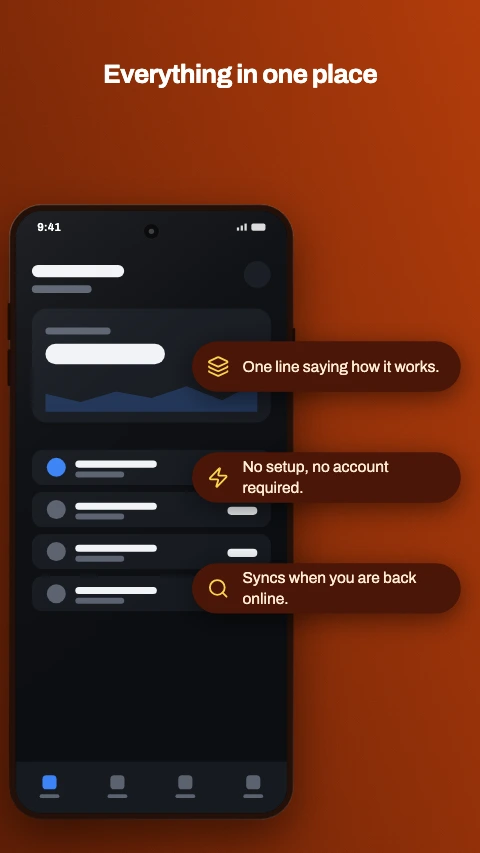
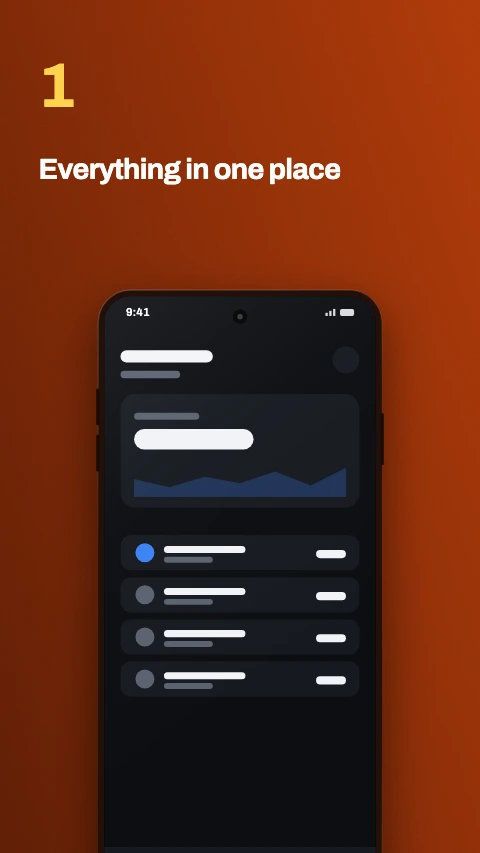
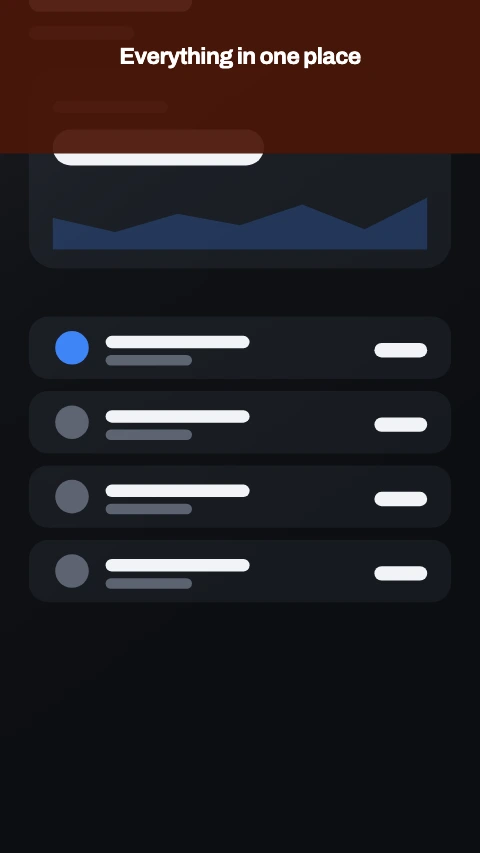
Four of the 1064 designs, at the Play phone size.
What it does
Built for the specific job of getting artwork through the Play Console, rather than as a general design tool that happens to export PNGs.
Every slot, one tool
All 16 Play graphic assets, each with its own canvas size, count rules and accepted formats. Switching a project from phone to tablet rescales the artwork rather than starting it again.
1064 designs to start from
56 layouts crossed with 19 themes - caption-led, frameless, panoramic, text-behind-device, knocked-out type, cut cards and apertures, and palettes from near-black to warm sand. Pick a style and a theme separately, and change the theme later without moving anything.
Checked as you design
Canvas size, aspect ratio, frame count, file size and alpha channel, plus the copy rules Play applies to store artwork - calls to action, ranking claims, pricing, testimonials.
True 24-bit PNG
Browsers can only write 32-bit PNG with an alpha channel, which is not what Play asks for. This encodes the PNG itself, with the alpha plane dropped.
Mockups we drew ourselves
14 devices - phones, tablets, watches, laptops and TVs - drawn as geometry rather than traced from product photographs. Every front-camera style is here, from a wide notch through waterdrop, corner and dual punch holes to under-display, because the cutout is the detail that dates a mockup. Nothing copyrighted ships in your artwork.
Flat, tilted or real 3D
A fast perspective warp for a row of angled phones, and a real 3D pass with thickness, lighting and a contact shadow when the device is the whole shot.
Nothing leaves the browser
Images are decoded, composed and encoded in the tab and stored in your browser. There is no server, no account and no upload.
Every Play graphic asset size
Taken from Play Console Help, and the same table the tool opens each canvas at - so it cannot drift from what the editor does.
Phone
| Asset | Size | Format | Count |
|---|---|---|---|
| Phone - portrait | 1080 x 1920 recommended - 320-3840px per side, long side at most 2x the short | 24-bit PNG or JPEG no alpha channel | 2-8 4+ to be featured |
| Phone - landscape | 1920 x 1080 recommended - 320-3840px per side, long side at most 2x the short | 24-bit PNG or JPEG no alpha channel | 2-8 4+ to be featured |
Large screens
| Asset | Size | Format | Count |
|---|---|---|---|
| 7-inch tablet - portrait | 1080 x 1920 recommended - 1080-7680px per side, 16:9 or 9:16 | 24-bit PNG or JPEG no alpha channel | 4-8 |
| 7-inch tablet - landscape | 1920 x 1080 recommended - 1080-7680px per side, 16:9 or 9:16 | 24-bit PNG or JPEG no alpha channel | 4-8 |
| 10-inch tablet - portrait | 1440 x 2560 recommended - 1080-7680px per side, 16:9 or 9:16 | 24-bit PNG or JPEG no alpha channel | 4-8 |
| 10-inch tablet - landscape | 2560 x 1440 recommended - 1080-7680px per side, 16:9 or 9:16 | 24-bit PNG or JPEG no alpha channel | 4-8 |
| Chromebook - landscape | 1920 x 1080 recommended - 1080-7680px per side, 16:9 or 9:16 | 24-bit PNG or JPEG no alpha channel | 4-8 |
| Chromebook - portrait | 1080 x 1920 recommended - 1080-7680px per side, 16:9 or 9:16 | 24-bit PNG or JPEG no alpha channel | 4-8 |
Other form factors
| Asset | Size | Format | Count |
|---|---|---|---|
| Wear OS | 1024 x 1024 recommended - 384-3840px per side, 1:1 | 24-bit PNG or JPEG no alpha channel | 1-8 |
| Android TV | 1920 x 1080 recommended - 1080-7680px per side, 16:9 | 24-bit PNG or JPEG no alpha channel | 1-8 |
| Android Auto - portrait | 800 x 1280 exactly | 24-bit PNG or JPEG no alpha channel | 2-8 |
| Android Auto - landscape | 1024 x 768 exactly | 24-bit PNG or JPEG no alpha channel | 2-8 |
| Android XR | 3840 x 2400 recommended - 1200-7680px per side, 8:5 | 24-bit PNG, 32-bit PNG or JPEG alpha optional | 4-8 |
Store graphics
| Asset | Size | Format | Count |
|---|---|---|---|
| Feature graphic | 1024 x 500 exactly | 24-bit PNG or JPEG no alpha channel | 1 |
| TV banner | 1280 x 720 exactly | 24-bit PNG or JPEG no alpha channel | 1 |
| App icon | 512 x 512 exactly | 32-bit PNG alpha required | 1 |
Every screenshot is capped at 8MB. The app icon is the one asset with the rules inverted - 32-bit PNG with an alpha channel, under 1024KB - which is why it gets its own export path in the tool.
About device frames and captions
Worth reading before you design a set, because the guidance and the practice disagree.
Google's own guidance asks you not to position screenshots inside device frames, and not to add text, graphics or backgrounds that are not part of the app's interface. Taken literally, that rules out most of the store artwork you have ever seen.
In practice framed, captioned screenshots are the norm on Play and are rarely rejected, because that half of the rules is reviewed by people rather than by a dimension check. So this tool builds the mockups, the 3D angles and the captions rather than refusing to draw them - the decision is a judgement call and it is yours to make.
Wear OS is the exception. There the rule is explicit - no device frames, no added text or graphics, no transparent backgrounds - and it is enforced. Send the watch face or the app UI on its own, and nothing else.
How to make a set of Play screenshots
The order that avoids redoing work, rather than the order the Console asks for the files in.
Pick the slot you are filling
Phone, tablet, Chromebook, Wear OS, TV, Android Auto or XR - each opens at its own canvas size with its own count and format rules. The Console rejects on those mechanically, so getting the slot right first is what stops a redesign later.
Capture the screens worth showing
Two screenshots is the minimum Play accepts and four of at least 1080px is the bar for editorial promotion. Shoot the screens that show what the app does rather than the sign-up flow.
Choose a layout and a theme
A layout decides where the caption and the device sit; a theme decides the palette and the typeface. They are independent, so the whole set can change register later without anything moving.
Write captions that survive the thumbnail
Most people see the first two screenshots at about 100px wide in the search results. A caption that is a short phrase in a large face reads at that size; a sentence does not.
Check the set against the spec table below
Size, aspect, count and format are the four things the Console rejects on mechanically. The table further down this page is the same data the editor opens each slot at, so a set built at the size it starts on already meets them.
Export as 24-bit PNG or JPEG
Play wants 24-bit PNG with no alpha channel for screenshots, and no browser canvas can write one. The exporter encodes the PNG itself with the alpha plane dropped, so the file is what the Console asks for.
Frequently asked questions
What size should a Google Play screenshot be?
Can I put my screenshots inside a phone frame?
Why does my PNG get rejected for having an alpha channel?
How many screenshots does a Play listing need?
Are my screenshots uploaded anywhere?
Is it really free?
Open the studio
It opens straight into a phone screenshot project. Drop a capture in, put it in a mockup, and export a set the Console will accept.
Start designingThe rest of the toolkit
One editor, and a page for each job people bring to it.
App screenshot templates
I need a design to start from rather than a blank canvas.
Phone mockup generator
I need a hero image for a landing page or a launch post.
Device mockup frames
I need a frame that is not a phone, or a phone that is not dated.